When you buy something, the price shown on the product or price tag is not always the final amount you pay. In many places, sales tax is added to the purchase price at checkout.
Knowing how to calculate sales tax can help you understand the final cost before buying something. It is especially useful when comparing prices, planning a budget, shopping online, or checking whether the amount on a receipt is correct.
The good news is that calculating sales tax is simple once you know the formula.
In this guide, we will explain how sales tax works, show the formula, and walk through several easy examples.
What Is Sales Tax?
Sales tax is a percentage added to the selling price of certain goods or services.
For example, suppose an item costs $100 and the sales tax rate is 8%.
The sales tax would be:
$100 × 8% = $8
So the total amount you would pay is:
$100 + $8 = $108
The exact tax rate and which products are taxable depend on the location and applicable tax rules.
Sales Tax Formula
The basic formula for calculating sales tax is:
Sales Tax = Purchase Price × Sales Tax Rate
When the tax rate is given as a percentage, convert it to a decimal before multiplying.
For example:
8% = 0.08
So, if the purchase price is $200 and the tax rate is 8%:
Sales Tax = $200 × 0.08
Sales Tax = $16
The total price is:
Total Price = Purchase Price + Sales Tax
Therefore:
Total Price = $200 + $16
Total Price = $216
How to Calculate Sales Tax Step by Step
You can calculate sales tax in just a few steps.
Step 1: Find the Purchase Price
First, identify the original price of the item before tax.
For example:
Purchase price = $250
Step 2: Find the Sales Tax Rate
Next, check the applicable sales tax rate.
Suppose the rate is:
7%
Step 3: Convert the Percentage to a Decimal
Divide the percentage by 100:
7 ÷ 100 = 0.07
Step 4: Calculate the Tax
Multiply the purchase price by the decimal tax rate:
$250 × 0.07 = $17.50
So, the sales tax is $17.50.
Step 5: Calculate the Final Price
Add the tax to the original price:
$250 + $17.50 = $267.50
The final purchase price is therefore $267.50.
Example of Calculating Sales Tax
Let’s take another example.
Suppose you want to buy a laptop that costs $800, and the applicable sales tax rate is 6.5%.
First, convert 6.5% to a decimal:
6.5 ÷ 100 = 0.065
Now calculate the tax:
$800 × 0.065 = $52
The sales tax is $52.
Add it to the original price:
$800 + $52 = $852
So the final cost is $852.
How to Calculate the Total Price Including Sales Tax
If you already know the original price and tax rate, you can calculate the final price using another formula:
Final Price = Purchase Price × (1 + Sales Tax Rate)
For example, suppose:
- Purchase price = $500
- Sales tax = 8%
Convert 8% to decimal:
0.08
Then:
Final Price = $500 × (1 + 0.08)
Final Price = $500 × 1.08
Final Price = $540
The sales tax is $40, and the total price is $540.
Sales Tax Example With a $1,000 Purchase
Suppose you are buying furniture for $1,000, and the sales tax rate is 7.5%.
Sales tax:
$1,000 × 0.075 = $75
Final price:
$1,000 + $75 = $1,075
So you would pay $75 in sales tax and $1,075 in total.
How to Calculate Sales Tax on Multiple Items
If you are buying several items, you can usually start by finding the combined taxable purchase price.
For example:
| Item | Price |
|---|---|
| Headphones | $80 |
| Keyboard | $70 |
| Mouse | $30 |
| Total | $180 |
Suppose the applicable sales tax rate is 8%.
Sales tax:
$180 × 0.08 = $14.40
Final price:
$180 + $14.40 = $194.40
So the sales tax on the combined taxable amount is $14.40.
However, the actual calculation can vary when some items are exempt from tax or subject to different rules.
How to Calculate Sales Tax on a Discounted Item
Sales tax is generally calculated using the taxable amount after an applicable discount, but the exact treatment can depend on local tax rules and the type of discount.
For a simple example, suppose a jacket costs $120 and you receive a $20 discount.
Discounted price:
$120 − $20 = $100
If the sales tax rate is 8%:
$100 × 0.08 = $8
Final amount:
$100 + $8 = $108
So the final price in this example is $108.
How to Calculate Sales Tax on a Sale Price
The same basic method can be used when an item is already on sale.
Suppose a product originally costs $300 but is currently available for $240.
If the sales tax rate is 6%:
Sales Tax = $240 × 0.06
Sales Tax = $14.40
Final price:
$240 + $14.40 = $254.40
The important point is to use the applicable taxable selling price rather than automatically using the original price.
How to Calculate Sales Tax Backward
Sometimes you know the final price, including sales tax, but want to find the original price before tax.
This requires a slightly different formula.
Original Price = Final Price ÷ (1 + Sales Tax Rate)
For example, suppose the final amount paid is $108, including 8% sales tax.
Convert 8% to decimal:
0.08
Then:
Original Price = $108 ÷ 1.08
Original Price = $100
The sales tax is therefore:
$108 − $100 = $8
How to Find the Sales Tax From the Final Price
If you know both the original price and final price, you can find the tax amount by subtraction.
Sales Tax = Final Price − Original Price
For example:
- Original price = $500
- Final price = $540
Therefore:
Sales Tax = $540 − $500 = $40
You can then calculate the tax rate if needed:
Sales Tax Rate = (Sales Tax ÷ Original Price) × 100
So:
($40 ÷ $500) × 100 = 8%
Sales Tax vs Total Price
It is important not to confuse the tax amount with the final purchase price.
For example, if an item costs $400 and the sales tax is 5%:
Sales tax = $400 × 0.05 = $20
But the final price is:
$400 + $20 = $420
So:
- Original price: $400
- Sales tax: $20
- Final price: $420
Why Sales Tax Rates Matter
A small difference in the tax rate can change the final price, especially when you are making a large purchase.
For example, consider a $2,000 purchase.
At 5% tax:
$2,000 × 0.05 = $100
At 8% tax:
$2,000 × 0.08 = $160
The difference in tax is:
$160 − $100 = $60
This is why checking the applicable tax rate can be useful when planning the cost of an expensive purchase.
Sales Tax on Online Purchases
Sales tax can also apply to purchases made online. The tax treatment depends on the seller, buyer’s location, type of product or service, and applicable laws.
Many online stores automatically calculate applicable taxes during checkout.
If you are trying to estimate your total cost before reaching the checkout page, knowing the relevant tax rate can help you make a rough calculation.
However, the final amount shown by the seller should be treated as the applicable charge for that transaction.
Use a Sales Tax Calculator
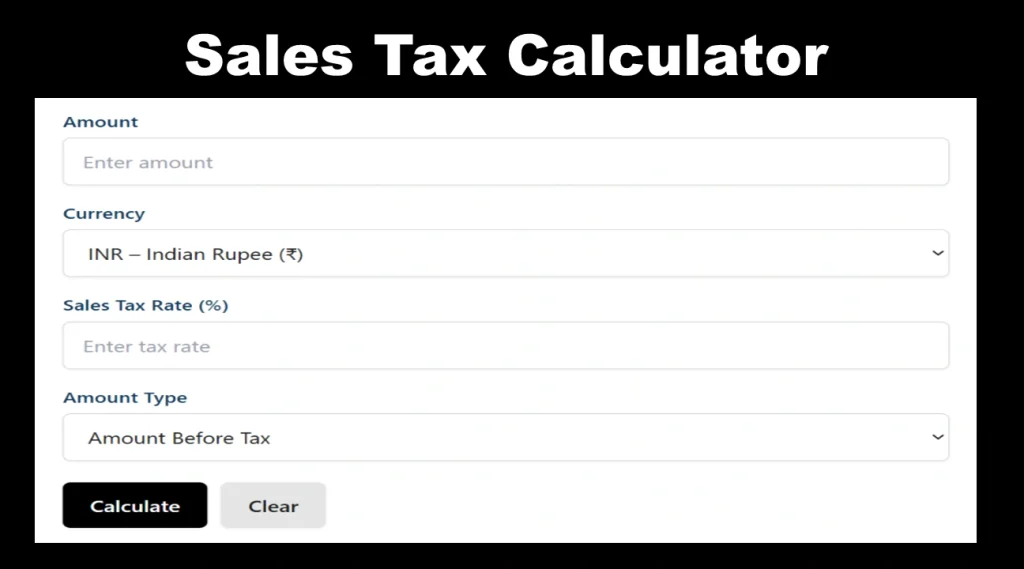
If you do not want to calculate sales tax manually, you can use the Sales Tax Calculator on NexCalco.
A calculator can make it easier to estimate the sales tax and final purchase price. You only need to enter the purchase amount and applicable tax rate.
It can be particularly useful when comparing several products or checking the expected cost of a purchase.
Common Sales Tax Calculation Mistakes
Forgetting to Convert the Percentage
One of the most common mistakes is multiplying directly by a percentage number.
For example, 8% should be written as 0.08 when using the basic multiplication formula.
Adding the Tax Twice
After calculating the sales tax, add it to the original price only once.
For example:
$100 + $8 = $108
You should not calculate another 8% on the already-taxed amount unless the applicable tax structure specifically requires another calculation.
Using the Wrong Tax Rate
Sales tax rates can vary by location and may change over time. Always use the applicable rate for the purchase rather than relying on an old rate.
Assuming Every Item Is Taxable
Not every product or service is necessarily taxed in the same way. Tax rules can vary depending on the location and type of purchase.
Ignoring Discounts
When an item has a discount, make sure you understand which amount is subject to tax under the applicable rules.
Quick Sales Tax Examples
Here are a few simple examples:
| Purchase Price | Tax Rate | Sales Tax | Final Price |
|---|---|---|---|
| $100 | 5% | $5 | $105 |
| $250 | 6% | $15 | $265 |
| $500 | 7% | $35 | $535 |
| $750 | 8% | $60 | $810 |
| $1,000 | 9% | $90 | $1,090 |
These examples assume the entire purchase amount is taxable at the stated rate.
A Simple Way to Remember the Formula
There are two formulas worth remembering.
To Find Sales Tax
Sales Tax = Purchase Price × Tax Rate
To Find Final Price
Final Price = Purchase Price + Sales Tax
Or:
Final Price = Purchase Price × (1 + Tax Rate)
Once you know these formulas, you can calculate the tax on most straightforward purchases quickly.
Final Thoughts
Calculating sales tax is simple when you know the purchase price and applicable tax rate. Multiply the purchase price by the tax rate to find the tax amount, then add that amount to the original price to get the final cost.
For example, a $500 purchase with an 8% sales tax has $40 in tax, making the final price $540.
For quick calculations, you can use the Sales Tax Calculator on NexCalco instead of working through the formula manually.
Remember that actual sales tax rules can vary by location, product, and transaction. For an exact checkout amount, always check the tax shown by the seller or the applicable local tax information.